
Can You Get Free Storage? Here’s How Real People Do It

Free Storage Calculator
Calculate how much free storage space you have from existing accounts and hardware. Based on real-world usage patterns from the article.
Select Your Storage Sources
Important: Free storage isn't permanent. Services can change policies or shut down. Always keep important files on physical drives.
*Based on standard free tiers. Actual available space may vary.
Everyone wants free storage. Whether it’s photos from last summer, work files you can’t delete, or videos you swore you’d back up but never got around to - space runs out fast. And paying for more? That’s the last thing you want to do. But here’s the truth: free storage isn’t a myth. It’s everywhere - if you know where to look and how to use it right.
Cloud Storage Services Give Free Space (And You’re Probably Already Using One)
You signed up for Gmail. You uploaded photos to Google Photos. You saved a document to OneDrive. Guess what? You already have free storage. Most big tech companies give you gigabytes of free space just for having an account. Google gives you 15 GB shared across Gmail, Drive, and Photos. Microsoft gives you 5 GB on OneDrive. Apple gives you 5 GB on iCloud. Dropbox? 2 GB. These aren’t hidden deals - they’re standard offers. The catch? They’re not unlimited, and they’re tied to your account.
Here’s how people stretch it: If you use Gmail, you’re not using your Google Drive space for emails. But if you save large attachments, they eat into your 15 GB. So clean out old emails with big files. Delete screenshots you took by accident. Uninstall apps that auto-upload photos. That 15 GB can last years if you’re smart.
Use Multiple Free Accounts - Legally
Why use one service when you can use five? Most people don’t realize they can sign up for multiple free accounts with different email addresses. Need more space? Create a second Google account with a new email. Use it for photos. Make a third for work files. Link them all to your phone and computer. It’s not cheating - it’s using the rules as they’re written.
One person in Auckland does this: She has a Google account for family photos, a Microsoft account for school documents, and a Dropbox account for client files. She never pays a cent. She checks each account once a month to delete duplicates. Total free space? Over 25 GB. That’s enough for 5,000 high-res photos or 500 hours of music.
Hardware Isn’t Dead - Old Devices Can Be Free Storage
That old USB drive gathering dust? Your unused external hard drive from 2018? Those are free storage. Plug them in. Copy your files. Done. No subscription. No cloud login. No risk of a service shutting down.
People in New Zealand are turning old laptops into dedicated storage units. Take a 5-year-old MacBook or Windows PC. Wipe the OS. Install a lightweight Linux distro like Ubuntu. Turn it into a home server. Connect it to your router. Now you can access files from any device in the house - for free. No monthly bill. No ads. Just your own private cloud.
One guy in Christchurch turned his old Dell into a media server. He stores all his kids’ videos, music, and PDFs on it. He even set up a simple web interface so his wife can browse from her phone. Cost? $0. Time to set up? Three hours.

Photo and Video Apps Have Hidden Free Tiers
Google Photos used to offer unlimited free storage. It doesn’t anymore - but it still gives you 15 GB free, and you can upload in "High Quality" (compressed) without losing much detail. Same with Amazon Photos: Prime members get unlimited photo storage (but not video). If you already pay for Prime, you’re getting free photo backup.
Apple’s iCloud Photos? Free tier is 5 GB. But if you have an iPhone, you’re already syncing photos. Use the "Optimize iPhone Storage" setting. It keeps low-res versions on your phone and full versions in the cloud. That saves phone space and stretches your iCloud limit.
And don’t forget Flickr. Yes, it still exists. It gives you 1,000 free photos. Not videos. Not files. Just photos. But if you’re a photographer, that’s a goldmine. It’s ad-free, no watermark, and your photos stay public or private - your choice.
University and Work Accounts Can Give You Terabytes
Are you a student? Check your school’s IT portal. Many universities give students free terabytes of cloud storage. The University of Auckland gives 1 TB to every student on OneDrive. That’s 200 times more than the free Google account. Same goes for many high schools and colleges in the U.S., Canada, and the UK.
Employees often get the same perk. If your company uses Google Workspace or Microsoft 365, you might have unlimited or near-unlimited storage. Ask your IT department. Most people don’t - and they miss out.
Free Storage Isn’t Perfect - Here’s What to Watch Out For
Free doesn’t mean risk-free. Here’s what can go wrong:
- Storage limits reset - Some services delete files if you go over. Google warns you. Dropbox doesn’t. You could lose everything.
- Service shutdowns - Remember Google+? Or Dropbox’s old free plan? Companies change policies. Always have a backup plan.
- Privacy risks - Free services make money off your data. They scan your files for ads. They sell anonymized data. If you’re storing tax docs or medical records, use encryption or pay for privacy.
- Slow access - Free tiers often throttle download speeds. Uploading 10 GB might take all day.
Best practice? Use free storage for things you can afford to lose. Backup your most important files on a physical drive. Use cloud for copies - not originals.
How to Build Your Own Free Storage System
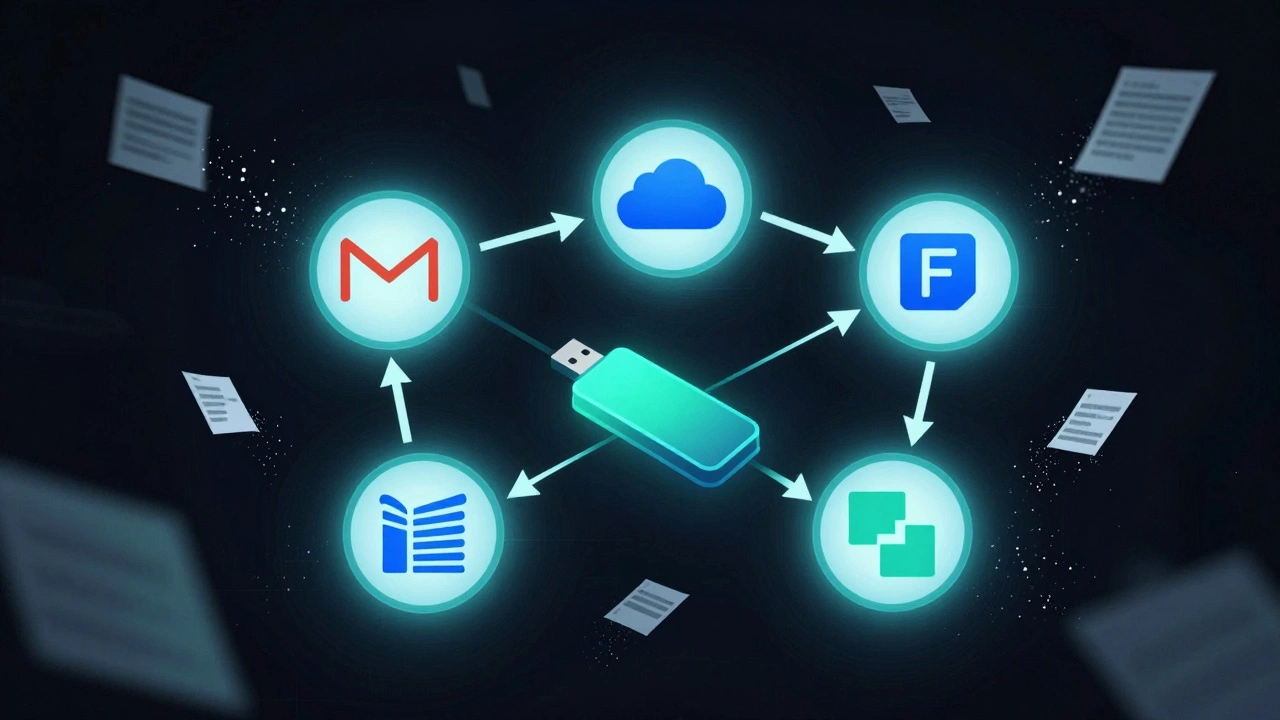
Here’s a real plan someone used to get 50 GB free without paying:
- Use Google Drive (15 GB) for documents and spreadsheets.
- Use iCloud (5 GB) for iPhone backups and photos.
- Use OneDrive (5 GB) for work files.
- Use Flickr (1,000 photos) for curated photo albums.
- Use an old 1 TB external drive for everything else.
- Use a second Google account for extra 15 GB - total now 35 GB cloud + 1 TB local.
That’s 1,035 GB. Free. And it’s organized. No clutter. No surprises.
What to Delete First (And What to Keep)
Storage fills up fast because of junk. Here’s what to clean up:
- Blurry screenshots
- Duplicate downloads
- Old installers (.exe, .dmg files)
- Unused browser extensions
- Cache files (your browser stores GBs of them)
- Video drafts you never finished
- Apps you uninstalled but still have data for
Use tools like Apple’s Storage Management (on Mac) or Windows’ Storage Sense. They show you exactly what’s taking space. Delete in bulk. You’ll free up 10-20 GB in 10 minutes.
Final Tip: Free Storage Needs Maintenance
Free storage isn’t set-and-forget. It’s like a garden. You have to weed it. Set a calendar reminder: once a quarter, spend 30 minutes cleaning up. Delete. Organize. Move old files to a drive. Check limits. Update passwords. That’s it. No cost. No stress. Just control.
You don’t need to pay. You just need to be a little smarter than the average user. The free options are real. They’re powerful. And they’re waiting for you to use them right.
Can I really get free cloud storage without signing up for anything?
No - all free cloud storage requires an account. But you probably already have accounts with Google, Microsoft, or Apple that give you free space. You don’t need to sign up for new services unless you want more. Just use what’s already there.
Is free storage safe for important files like tax records or contracts?
Not by itself. Free cloud services scan your files and may store data for advertising. For sensitive documents, use encryption (like 7-Zip with a password) or store them on a physical drive. Use the cloud only as a backup, not your primary copy.
What happens if a free storage service shuts down?
You lose your files. That’s why you should never rely on just one free service. Always keep a copy on a USB drive or external hard drive. If a service shuts down, you’ll still have your data. Google Photos, Dropbox, and others have changed policies - don’t assume they’ll stay the same.
Can I use free storage on my phone without using up my data plan?
Yes - but only if you upload over Wi-Fi. Most phones auto-upload photos over cellular data by default. Go into your settings and turn off cellular uploads. Only allow backups when connected to Wi-Fi. That way, you get free storage without burning through your data.
Do I need to pay for a service to get more than 100 GB free?
Not necessarily. Students and employees often get 1 TB free through school or work accounts. If you’re in education or work for a company using Microsoft 365 or Google Workspace, check your portal. You might already have more than 100 GB - you just didn’t know it.